This is a demo store. No orders will be fulfilled.

Which MacBook do I have?
New models come out every year, making it harder to keep track of which MacBook is yours. Want to make sure you order a laptop case that actually fits? Then it helps to know exactly which device you have. A quick look at your settings reveals the version or model number you need, so you can order with confidence. Follow the step-by-step guide below and you'll have your answer in no time.
Step-by-step guide: which MacBook model do I have?
Option 1: Check your settings
1. Click the Apple logo in the top-left corner of your screen.
2. Then click " About This Mac ".
3. Your MacBook type will be displayed.
Option 2: Check the back
1. Flip over your MacBook.
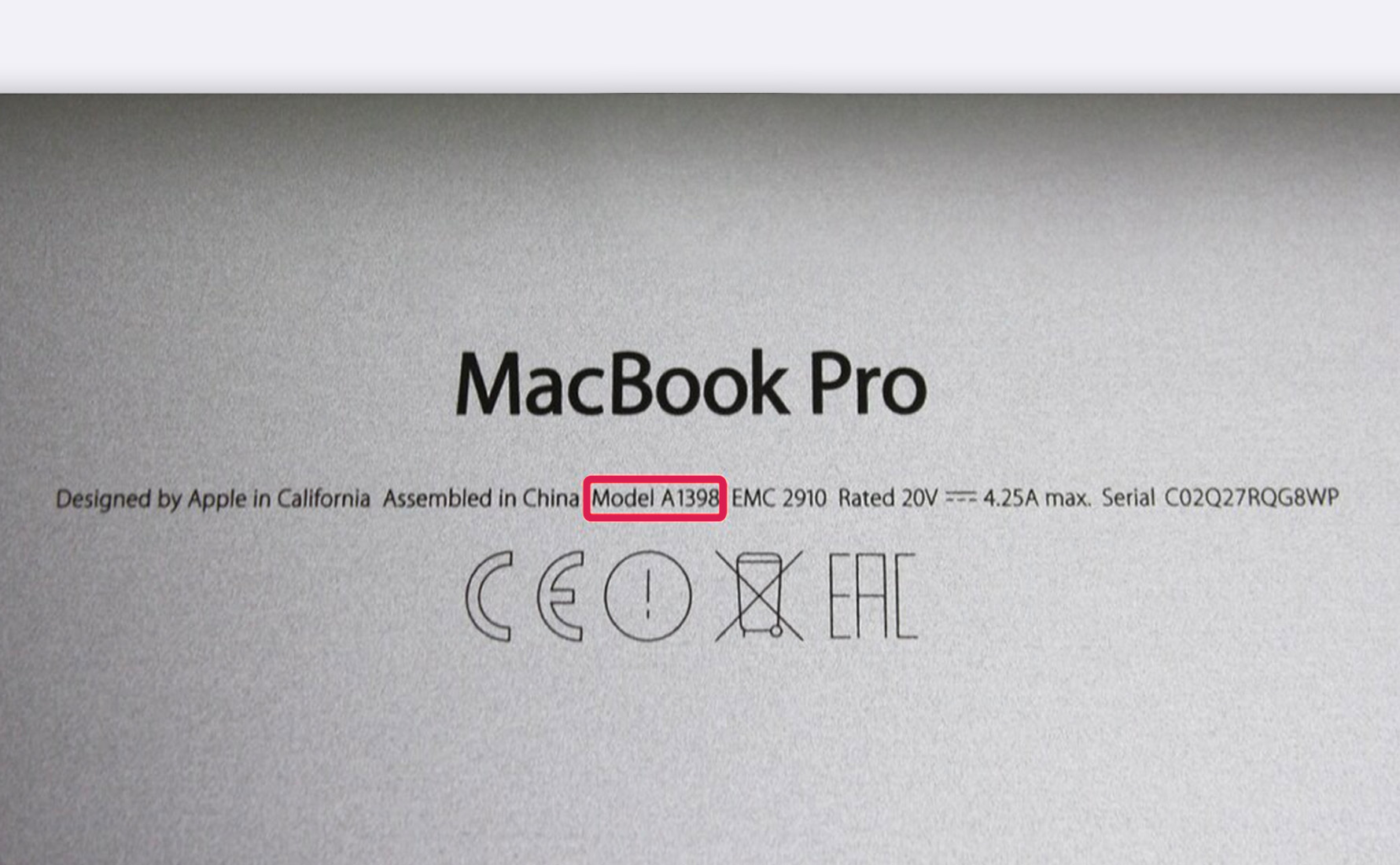
2. Above the CE mark, you'll find the model number in the small print.
3. With this model number " A0000 ", you can find your MacBook model in the table below.
Now that you know the right name, you can order a laptop case for your MacBook. Click the button below and select your MacBook.
Step-by-step guide: which MacBook model do I have?
Option 1: Check your settings
1. Click the Apple logo in the top-left corner of your screen.
2. Then click " About This Mac ".
3. Your MacBook type will be displayed.
Option 2: Check the back
1. Flip over your MacBook.
2. Above the CE mark, you'll find the model number in the small print.
3. With this model number " A0000 ", you can find your MacBook model in the table below.