Everything you need to know about paying with your phone
Everything you need to know about paying with your phone
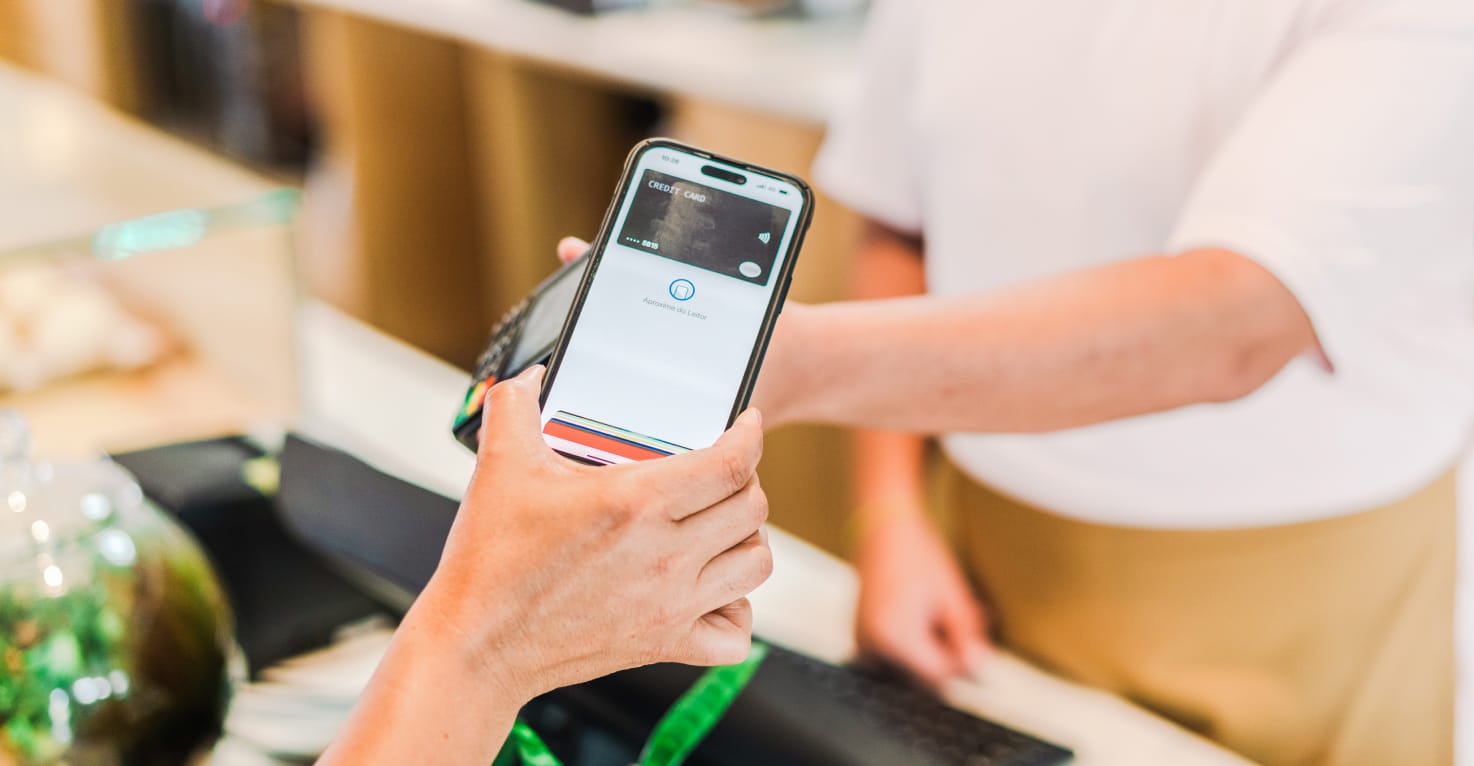
To pay with your phone, turn on NFC, add your card to Apple Pay, Google Wallet or Samsung Wallet, and hold your unlocked phone against the card reader. That's all there is to it: contactless payment with your smartphone is faster than using a card and works at virtually every card reader in the UK. On this page, you'll find exactly how contactless payment works, how to turn on NFC on your iPhone, Android or Samsung phone, what the limit and risks are, and which banks support Apple Pay, Google Wallet and Samsung Wallet.
How does contactless payment with your phone work?
When paying contactlessly, you hold your phone close to the card reader. Via NFC (Near Field Communication), your phone and the reader exchange data at a distance of just a few centimetres, and the payment goes through within a second. Your phone doesn't send your actual card number to the shop; instead, it sends a one-time encrypted code that's only valid for that single transaction. Even if that code were intercepted, a fraudster couldn't do anything with it.
Paying contactlessly with your phone has a few clear advantages:
- It's faster than paying with a card, as you simply hold your phone against the card reader.
- Your actual card number is never shared, making card fraud much harder.
- No need for a debit card: your phone is already in your pocket.
What is NFC?
NFC stands for Near Field Communication and is the wireless technology behind contactless payment. It only works at a distance of a few centimetres, meaning your phone only exchanges data when you actually hold it against the card reader. Virtually every smartphone from the past few years has an NFC chip, as do most modern bank cards.
How do I pay with my phone?
Ready to pay with your phone for the first time? These four steps will get you set up in one go.
- Check whether your phone has NFC. Most smartphones from the past few years do.
- Turn on NFC in your phone's settings. On an iPhone, NFC is always on, so you can skip this step.
- Add your bank card to Apple Pay, Google Wallet or Samsung Wallet.
- Set up a screen lock with a PIN, fingerprint or face recognition; without an unlocked phone, you won't be able to pay.
Turning on NFC on your iPhone, Android or Samsung
Turning on NFC on your iPhone
On an iPhone, there's nothing to switch on: there's no separate toggle for NFC and the chip is always active. You decide per app, such as Apple Pay, whether it uses NFC.
Turning on NFC on Android
On most Android phones, you turn on NFC via Settings > Connected devices > Connection preferences > NFC. This menu path varies by brand, so search for NFC in your settings if you can't find the option straight away.
Turning on NFC on Samsung
On a Samsung phone, go to Settings > Connections > NFC and contactless payments to turn on NFC and choose which app you use by default for contactless payments.
Paying with Google Pay
Google Pay is now known as Google Wallet. The app works with most Android phones, smartwatches and tablets. Google Wallet is gradually replacing the older Google Pay app. Add your payment card in Google Wallet and pay securely in shops, in apps and online, without needing your physical card.
To pay contactlessly with a card in Google Wallet, you need to set Google Wallet as your default payment app. You can do this in your phone's settings, on Samsung phones for example under NFC and contactless payments. Once you've added your card and set it as the default, you'll see a tick next to the card in the app.
Paying with Apple Pay
Apple Pay is designed for users of Apple devices, including iPhone, iPad, Apple Watch and Mac. It's a digital payment service from Apple that lets you pay securely using your Apple devices. Apple Pay works for contactless payments in physical shops, as well as for online purchases and in-app payments.
But how do you use it? To get started with Apple Pay, you first need to set it up. Open the Wallet app on your iPhone and tap the plus sign (+) to add a card. Follow the instructions to add your credit or debit card; you can scan the card or enter the details manually. Once your card has been added, your bank may verify it with a code or through their app.
Paying with iPhone
Want to pay contactlessly with your iPhone? Double-press the side button and your saved cards will appear on screen. Choose your payment card and hold the top of your iPhone close to the card reader. Confirm the payment with Face ID, Touch ID or your passcode.
Paying with Apple Watch
Got an Apple Watch? You can pay with that too. Double-press the lower side button on your Apple Watch and hold it close to the card reader. You'll feel a vibration or hear a beep when the payment goes through.
Paying with Samsung Wallet
Samsung Pay is now called Samsung Wallet. Samsung combined the features of Samsung Pay and Samsung Pass into this single app, where you can store not just payment cards but also loyalty cards, tickets and digital car keys. Samsung Wallet has been available in the Netherlands since 7 February 2025.
You add your payment card in Samsung Wallet and pay by holding your phone against the card reader, just like with Apple Pay and Google Wallet. This works on most recent Samsung phones, such as the Galaxy S26. Not every Dutch bank supports Samsung Wallet for contactless payments: check in your own bank's app whether your card can be added.
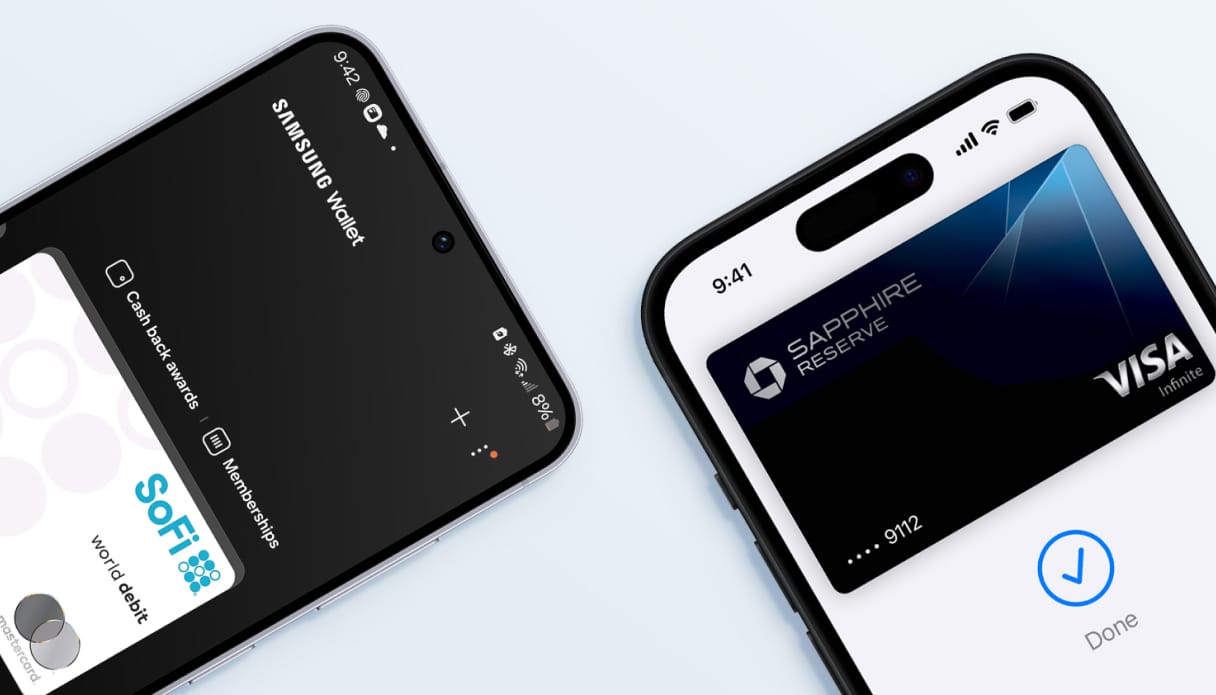
Is contactless payment safe? The risks
Paying contactlessly with your phone is safe in practice. According to Betaalvereniging Nederland, fraud via a stolen or copied NFC payment is extremely rare, because every payment uses a one-time encrypted code rather than your actual card number.
If you lose your phone or it gets stolen, a thief cannot simply make contactless payments: without your screen lock via face, fingerprint or PIN, the payment won't start. Report your phone to your bank as quickly as possible and the bank will block the linked cards, including for contactless payments with a PIN. If your security measures are in order, the bank will usually cover any losses from misuse of a stolen or lost phone or card.
- Always set up a screen lock using face recognition, fingerprint or a PIN.
- Report a stolen or lost phone to your bank immediately and block your cards.
- Use a feature such as Find My or Find My Device to lock or wipe your phone remotely.
Turning off contactless payment
If you would like to disable contactless payments, temporarily or otherwise, you can do so both on your card and on your phone.
- On your card, you turn off contactless payments via your bank's app. With some banks, it is not possible to disable this feature on your card.
- On your phone, you remove the payment card from Apple Pay, Google Wallet or Samsung Wallet, after which nothing can be paid using that wallet.
- On an Android or Samsung phone, you can also turn off NFC in the settings. On an iPhone that is not possible, but without an added card nothing will happen at the card reader anyway.
What is the limit for contactless payments?
In the UK, the standard limit for a physical contactless card is £100 per transaction, though most banks let you set a lower cap in their app and will occasionally ask for your PIN after £300 in consecutive taps.
When paying with your phone or smartwatch via Apple Pay or Google Wallet, there is generally no £100 limit because transactions are verified with Face ID, a fingerprint, or your passcode. Higher mobile purchases are only restricted by your bank’s daily spending limit or individual retailer terminal caps.
Does paying with your phone work with a phone case on?
Mobile payments via NFC work perfectly well with a phone case in most situations. As long as the case isn't too thick and contains no metal, the NFC function carries on as normal. Most standard silicone and plastic cases have no effect on NFC, so you can simply hold your phone against the card reader to pay contactlessly.
Do be careful with cases that have a card holder with a magnetic clasp, or metal cards inside: these can interfere with the NFC antenna, which means the card reader may not detect your phone. If payments aren't going through, try a thinner case without any metal components, or remove the case briefly while you pay. In [interne link: categorie telefoonhoesjes] you'll find slim phone cases that won't get in the way of contactless payments.
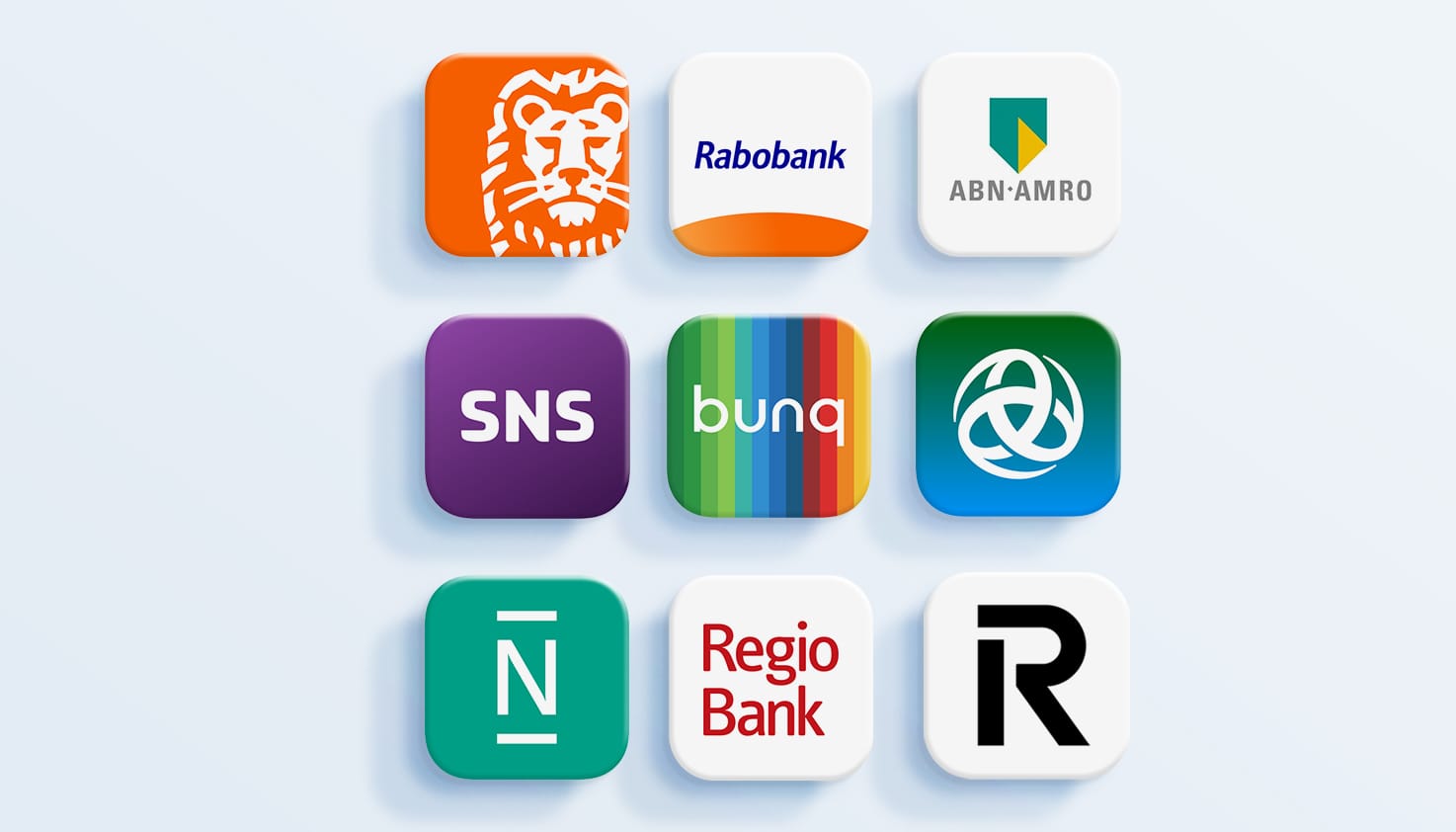
Which banks support paying with your phone?
In the Netherlands, most major banks support mobile payments, though not every bank supports every wallet. Apple Pay is offered by virtually all Dutch banks, including ING, Rabobank, ABN AMRO, SNS, ASN Bank, RegioBank, Bunq, N26 and Revolut. Google Wallet, the successor to Google Pay, is likewise supported by almost all major banks, including ING, Rabobank and ABN AMRO. Samsung Wallet became available in the Netherlands at the start of 2025, but isn't yet supported by every bank: check your bank's app to see whether you can add your card.
Frequently asked questions about paying with your phone
Can I pay with my phone without an internet connection?
Yes, the payment itself doesn't require an internet connection: the communication between your phone and the card reader takes place via NFC, not via Wi-Fi or mobile data. You do need internet access occasionally to open or update your wallet app and to add new cards.
Can I also pay with my smartwatch?
With an Apple Watch you pay via Apple Pay, and with most Android smartwatches via Google Wallet, in exactly the same way as with your phone: add your card, unlock the device and hold the smartwatch against the card reader.
Does paying with your phone work abroad?
In most countries with contactless card readers, paying with your phone works abroad too, as long as the retailer accepts international cards. Bear in mind that the limit for payments without additional confirmation may differ from country to country.
What should I do if my phone is stolen?
Report the theft to your bank immediately to block your cards, mark your phone as lost via Find My or Find My Device, and lock or wipe it remotely. Make sure to report the theft to the police as well.
Does NFC need to be on all the time?
On an iPhone, NFC is always on and cannot be turned off. On Android and Samsung phones, you can safely leave NFC on: the chip only exchanges data when you actually hold your phone against a reader.
Does paying with your phone cost anything?
No, Apple Pay, Google Wallet and Samsung Wallet don't charge any fees for adding or using your payment card. You pay the same fees as with your physical card, depending on your bank's terms and conditions.